To choose a gaming monitor, match the resolution to your graphics card, pick a refresh rate of at least 144 Hz for PC gaming, and choose the panel type (IPS, VA or OLED) that suits your room and budget.
You look at your monitor every second you play, yet many people spend the least time choosing it. Here’s what actually matters.
From PixelAlex: I use a Dell 4K monitor, and the sharpness is a big upgrade for detailed, beautiful games. My advice: decide what matters most to you – image quality or high refresh rate – before you buy.
The guide goes through each spec in order of importance. After that, you’ll find advice for console players, the settings to change once the monitor arrives, and a short checklist.
1. Resolution: how sharp is the picture?
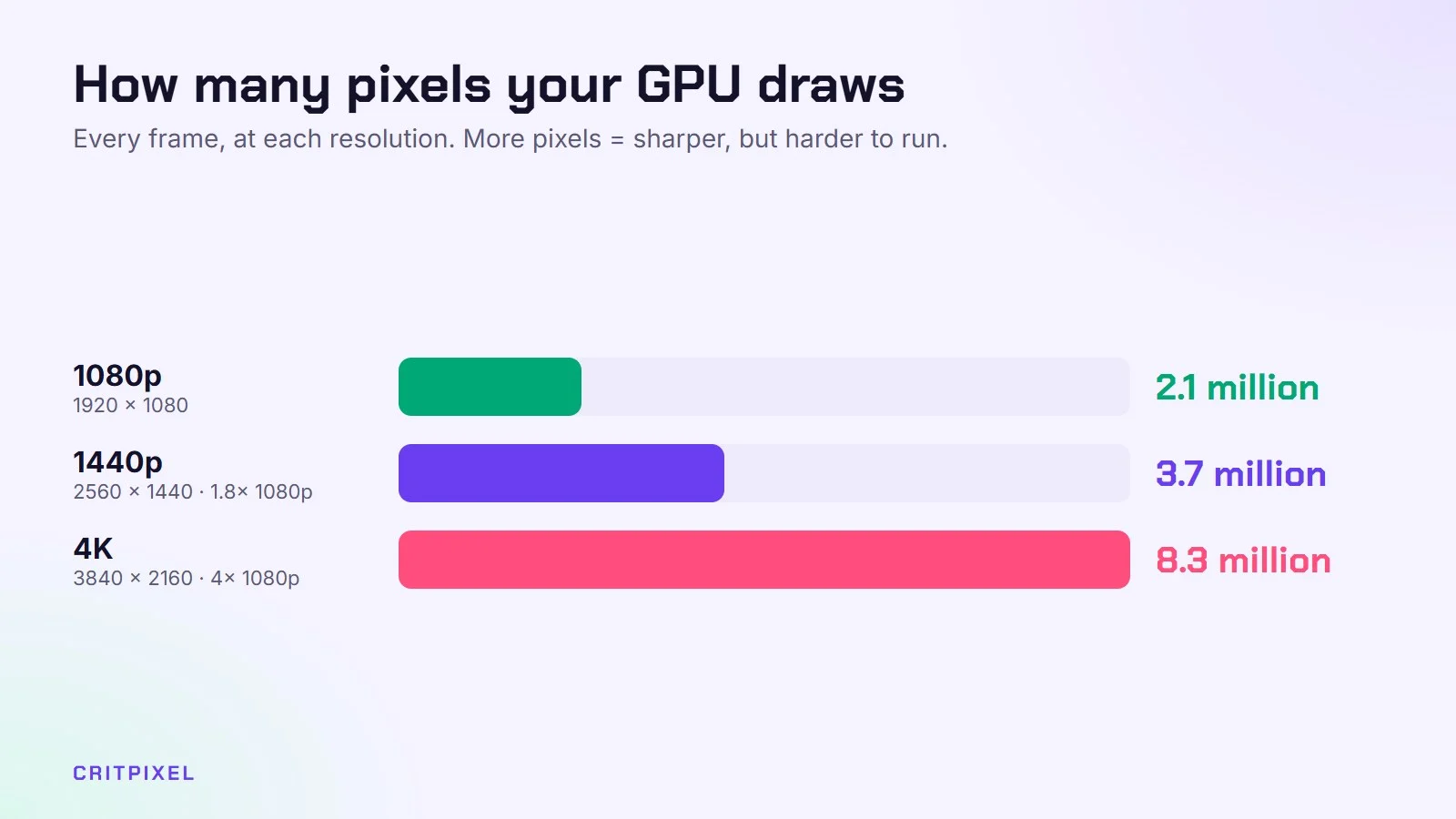
| Resolution | Best for |
|---|---|
| 1080p (1920×1080) | Budget PCs, competitive shooters, 24-inch screens |
| 1440p (2560×1440) | The sweet spot for most gamers on 27-inch screens |
| 4K (3840×2160) | Powerful PCs, PS5 and Xbox Series X, big screens |
Match the resolution to your graphics card. A 4K monitor is not much fun if your PC can only run games well at 1080p.
Upscaling such as DLSS or FSR makes higher resolutions easier to run. Our guide to PC graphics settings explains how it works.
What about ultrawide?
Ultrawide monitors use a wider 21:9 shape, often at 3440×1440. They are great for racing games, flight games and work. However, not every game supports the format, and some show black bars on the sides. They also need more GPU power than a normal 1440p screen.
2. Refresh rate: how smooth is it?
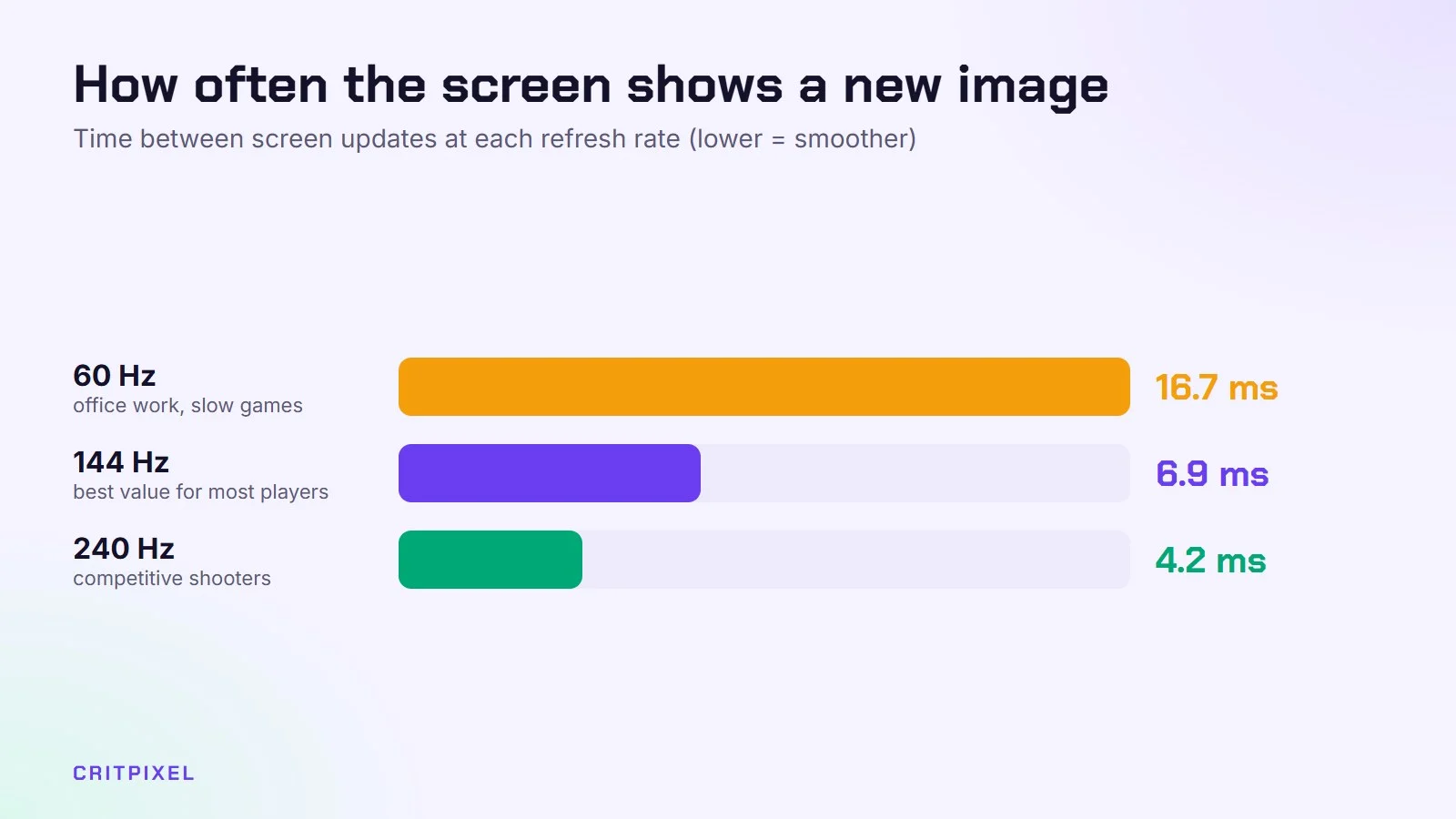
Refresh rate is measured in hertz (Hz). It tells you how many times per second the screen updates.
- 60 Hz: fine for slow games and office work
- 144–180 Hz: a big, very noticeable upgrade and the best value for most players
- 240 Hz and above: for competitive shooters, if your PC can reach those frame rates
Console players: PS5 and Xbox Series X|S support up to 120 Hz, and only some games use it. You need HDMI 2.1 for 4K at 120 Hz.
A high refresh rate only helps if your PC or console can produce enough frames. A 240 Hz screen fed with 70 FPS looks only a little smoother than a 144 Hz screen.
3. Panel type
| Panel | Strengths | Weaknesses |
|---|---|---|
| IPS | Great colours, wide viewing angles | Grey-looking blacks in dark rooms |
| VA | Deep blacks, high contrast, often cheaper | Some smearing in dark, fast scenes |
| OLED | Perfect blacks, instant response, stunning HDR | Expensive; static images can cause burn-in over time |
| TN | Very fast, cheap | Weak colours and viewing angles |
For most people, IPS is the safe all-rounder. OLED is the dream if your budget allows.
If you choose OLED, a few habits reduce the risk of burn-in. Hide the taskbar, use a dark wallpaper or screen saver, and let the monitor run its built-in panel care routines when it asks.
4. Response time
Response time is how quickly pixels change colour, measured in milliseconds (ms). Lower is better, but the numbers on the box are often marketing. Independent reviews with real tests are more reliable.
Most monitors have an overdrive setting (sometimes called “response time” in the menu). The middle option is often the best. The highest option can create bright or dark trails behind moving objects. This is known as overshoot.
5. Adaptive sync (G-Sync / FreeSync)
Adaptive sync removes screen tearing and stutter without the input lag of V-Sync. Make sure your monitor has it. Most modern gaming monitors do.
You may need to switch it on twice: once in the monitor’s own menu, and once in your graphics driver.
6. HDR
HDR can look amazing, but cheap “HDR400” monitors often look worse in HDR than in normal mode. Real HDR needs high brightness and good contrast, and OLED and Mini-LED monitors do this best.
If HDR looks washed out or too dark on your monitor, simply leave it off. A good standard picture beats poor HDR.
7. Size and distance
- 24 inches: 1080p, competitive gaming, small desks
- 27 inches: 1440p, the most popular size
- 32 inches and up: 4K, more immersive, needs a deeper desk
A useful rule: you should be able to see the whole screen without turning your head. If you have to look left and right to check the corners, the monitor is too big for your desk.
8. Connections
On PC, connect with DisplayPort where possible. It is the most reliable way to get full refresh rates and adaptive sync from a graphics card. Use the cable that came with the monitor if it’s in good condition.
For consoles, you need HDMI. Check the monitor’s HDMI version: HDMI 2.1 is required for 4K at 120 Hz, as mentioned above.
Other useful extras:
- USB-C with DisplayPort, for connecting a laptop with one cable
- A height-adjustable stand, which matters more for comfort than many people expect
- A VESA mount, if you want to use a monitor arm
Monitors for console players
Consoles are pickier than PCs. Keep these points in mind:
- PS5 has supported 1440p output since a system update, so a 1440p monitor is a good option. Games either run at 1440p directly or are scaled down from 4K.
- Xbox Series X|S also supports 1440p output.
- A 4K monitor with HDMI 2.1 is the most future-proof choice if you play on both a console and a PC.
Settings to change after you buy
A new monitor rarely runs at its best straight out of the box. Spend five minutes on these:
- In Windows, open Settings → System → Display → Advanced display and select the highest refresh rate.
- Turn on adaptive sync in the monitor menu and in your graphics driver.
- Set overdrive to the middle option first.
- Turn off extra “dynamic contrast” or “eco” modes, which can change brightness while you play.
- Lower the brightness if the screen feels harsh in a dark room.
Quick check: Check the refresh rate again after major Windows or graphics driver updates. Updates can sometimes reset display settings, and a 144 Hz monitor running at 60 Hz is easy to miss.
Our simple recommendation
- Budget PC: 24-inch, 1080p, 144–180 Hz IPS
- Mid-range PC: 27-inch, 1440p, 144–180 Hz IPS
- High-end PC or console: 27- to 32-inch OLED, 1440p or 4K
Gaming on a laptop? The gaming laptop buying guide covers built-in screens too.
Keep reading: how to set your monitor to 144 Hz, how to set up HDR for gaming and how to fix input lag.
Read next: 1080p vs 1440p vs 4K for gaming: which to choose · OLED burn-in explained for gamers · How to connect a PS5 or Xbox to a monitor
Quick answers
Is 144 Hz worth it over 60 Hz? Yes. It’s one of the most noticeable upgrades in PC gaming, as long as your PC can reach high frame rates.
Is 1440p worth it for gaming? For most mid-range PCs on a 27-inch screen, yes. It looks clearly sharper than 1080p without the heavy cost of 4K.
Can I use a 1440p monitor with a PS5? Yes. The PS5 supports 1440p output, so the picture uses the monitor’s full resolution.
Do I need HDMI 2.1? Only for 4K at 120 Hz on PS5 or Xbox Series X|S. On a PC, DisplayPort usually does the job.
Is OLED burn-in still a problem? It can happen over time with static images. Varied use and the monitor’s own care features lower the risk.
Should I choose IPS or VA? IPS for colours and viewing angles, VA for deep blacks in dark rooms. For fast games, IPS is usually the safer choice.
Leave a Reply