Every PC game has a menu full of strange words. Most people just pick “High” and hope for the best. If you understand a few key settings, you can get a lot more frames per second (FPS) with almost no visible difference.
Below, each common setting gets its own short section. At the end, you’ll find a table of what to lower first, a simple way to test your changes, and fixes for common problems.
Start with a preset
Most games offer presets such as Low, Medium, High and Ultra. They are a sensible starting point.
Pick the preset that gets you close to your target frame rate, then adjust single settings from there. “Ultra” often costs a lot of performance for details you will barely notice while playing. “High” is usually the better deal.
Resolution
The number of pixels the game draws, for example 1920×1080 (1080p), 2560×1440 (1440p) or 3840×2160 (4K). This has the biggest impact on performance. Going from 1440p to 1080p can make a huge difference.
Always try to run games at your monitor’s native resolution. A lower resolution on a sharp monitor looks blurry. If you need more speed, use upscaling (next section) instead.
Some games also have a render scale or resolution scale slider. It changes the internal resolution while keeping menus sharp. 100% means native resolution.
Upscaling: DLSS, FSR and XeSS
Upscalers draw the game at a lower resolution. They then rebuild a sharp image at your screen’s resolution.
- DLSS: NVIDIA RTX cards only
- FSR: versions up to FSR 3 work on almost any modern graphics card; FSR 4 needs a recent AMD Radeon RX 9000 card
- XeSS: Intel’s version; works on many cards
Use the Quality mode first. In many games it looks nearly as good as native resolution and runs much faster.
Modes like Balanced and Performance give more FPS but a softer image. They work best at higher resolutions such as 4K, where there are more pixels to start from.
If you have spare performance, NVIDIA’s DLAA mode uses the same technology at native resolution purely to improve image quality. It works on all RTX cards.
Frame generation
Newer versions of DLSS and FSR can create extra “in-between” frames, which makes the game look smoother. Frame generation can add a little input lag, so it feels best when you already have a decent frame rate (around 60 FPS or more). DLSS Frame Generation needs an NVIDIA RTX 40 or 50 series card.
DLSS 4 adds Multi Frame Generation, which creates up to three extra frames for every normal frame. It only works on RTX 50 series cards.
Remember that generated frames make motion look smoother, but they don’t make the game react faster. For fast online shooters, a high “real” frame rate matters more.
V-Sync, G-Sync and FreeSync
- V-Sync stops “screen tearing” (the picture looking split), but can add input lag.
- G-Sync / FreeSync (adaptive sync) does the same job much better. If your monitor supports it, turn it on in your graphics driver and cap your FPS a few frames below your refresh rate.
Frame rate limit
Capping your FPS slightly below your monitor’s refresh rate (for example, 141 FPS on a 144 Hz screen) keeps motion smooth and your PC cooler and quieter.
A cap also helps when your frame rate jumps up and down a lot. A steady 60 FPS often feels better than a frame rate that swings between 60 and 90.
Low-latency modes
Many competitive games include NVIDIA Reflex, which reduces the delay between your mouse click and the action on screen. AMD offers a similar feature called Anti-Lag. If your game has one of these options, turning it on rarely has a downside.
Anti-aliasing
Anti-aliasing smooths jagged edges. TAA is common and cheap. MSAA looks sharp but is very heavy. If you use DLSS, FSR or XeSS, they already handle anti-aliasing.
Textures
Textures set the detail of surfaces. They mostly use your graphics card’s video memory (VRAM), not raw speed. If you have enough VRAM, keep them high, because they make a big visual difference.
Many games show a VRAM bar in the settings menu. If the bar goes past your card’s limit, lower textures one step. Running out of VRAM causes sudden stutters and, sometimes, crashes.
Texture filtering
Also called anisotropic filtering. It keeps floors and roads sharp when you look at them from an angle. The performance cost is tiny on modern cards, so set it to the highest option (usually 16x).
Shadows
Shadows are often one of the most expensive settings. Going from Ultra to High is usually hard to notice, but it can give you a nice FPS boost.
Ambient occlusion
Adds soft shadows in corners and where objects meet. It looks nice but costs performance. Try a lower setting.
Volumetric fog and lighting
This setting creates beautiful light beams and fog, but it is very heavy. It is one of the first settings to lower.
Ray tracing
Ray tracing creates realistic reflections, shadows and lighting. It can look incredible, but it is the most demanding feature in modern games. Turn it on only if you have a powerful RTX or recent Radeon card, ideally with upscaling.
Motion blur and depth of field
These are a matter of personal taste. Many players turn motion blur off because it makes fast action look smeared.
Field of view (FOV)
How much of the game world you see at once. A wider FOV shows more on the sides of the screen, which helps in shooters. Very wide settings cost a little performance and can make objects in the middle look smaller.
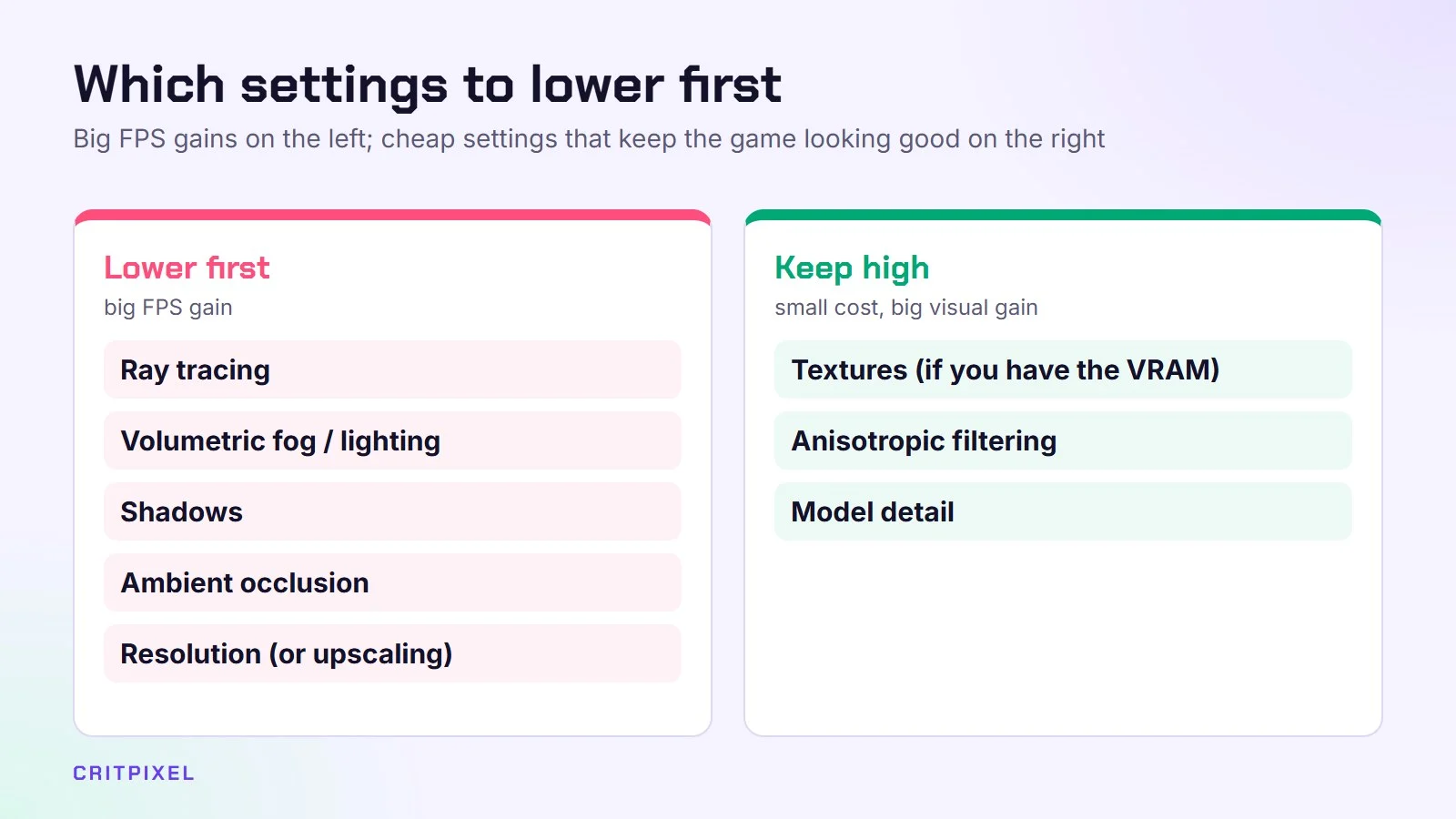
Which settings to lower first
| Lower first (big FPS gain) | Keep high (small cost, big visual gain) |
|---|---|
| Ray tracing | Textures (if you have the VRAM) |
| Volumetric fog/lighting | Anisotropic filtering |
| Shadows | Model detail |
| Ambient occlusion | |
| Resolution (or use upscaling) |
How to test your changes
Guessing is not enough. A short, repeatable test shows you what each setting really does on your PC.
- Turn on an FPS counter. Many games have one built in, and graphics driver apps offer one as well.
- Use the game’s built-in benchmark if it has one. If not, pick one busy spot and always test there.
- Change one setting at a time, then compare the frame rate.
- Watch the lowest FPS, not only the average. Low dips are what you feel as stutter.
- Write down your results so you can go back to the best mix.
Good to know: Some settings only take full effect after you restart the game, and some games rebuild shaders after a change. If your frame rate looks strange right after a change, restart the game and test again.
Common problems and fixes
| Problem | Likely cause | Try this |
|---|---|---|
| Stutter even at high FPS | Not enough VRAM, or the game is still preparing shaders | Lower textures one step; play a few minutes, as early stutter often settles |
| Picture looks blurry | Upscaler mode too low, or resolution below native | Use Quality mode and native resolution |
| Screen tearing | No adaptive sync, FPS above refresh rate | Turn on G-Sync/FreeSync and cap FPS |
| Input feels slow | V-Sync or frame generation at a low base FPS | Turn V-Sync off, use a frame cap, try Reflex or Anti-Lag |
| Game crashes after changes | Settings too heavy for VRAM | Return to a lower preset and change one thing at a time |
If your PC is struggling, also read our guides on making games run faster on a weak laptop and speeding up your gaming PC. If stutter remains after you lower settings, see how to fix stutter in PC games. And if you want to change how a game looks rather than how fast it runs, you can install ReShade safely to add colour and sharpening filters.
From PixelAlex: Change one setting at a time and check the result. Shadows and other heavy effects are usually the best place to start if you need more FPS.
Read next: How to cap FPS · V-Sync, G-Sync and FreeSync explained · What is ray tracing? A plain-English guide · AMD Adrenalin settings for better gaming
Quick answers
Which graphics setting gives the most FPS? Resolution, followed by ray tracing, shadows and volumetric effects. Upscaling in Quality mode is usually the best trade-off.
Does DLSS make games look worse? In Quality mode, the difference is often hard to see. Lower modes like Performance look softer, especially at 1080p.
Should I turn V-Sync on or off? If your monitor has G-Sync or FreeSync, use that with an FPS cap instead. Without adaptive sync, V-Sync removes tearing but adds some delay.
Do textures lower FPS? Not much, as long as you have enough VRAM. If you go over the limit, you get stutter.
Is Ultra worth it? Rarely. High usually looks almost the same and runs noticeably better.
Not sure what graphics card you have? Our guide on how to check your PC specs shows you in under a minute.

Leave a Reply