Building your own gaming PC sounds scary, but it is mostly a matter of plugging the right things into the right slots. If you can build LEGO and follow instructions, you can do this. It usually takes a beginner an afternoon.
From PixelAlex: I game on my own PC alongside my PS5. Whether you build your first PC or upgrade one, take your time with each step. Patience prevents most beginner mistakes.
This guide covers the whole job in order, plus what to check if the screen stays black.
The parts you need
| Part | What it does | Beginner tip |
|---|---|---|
| CPU (processor) | The brain of the PC | Pick the CPU first; it decides your motherboard |
| Motherboard | Connects everything | Must match your CPU’s socket |
| RAM (memory) | Short-term memory for games | 32 GB is a comfortable choice for gaming today; 16 GB is the minimum |
| GPU (graphics card) | Draws the game; most important for FPS | Spend the biggest part of your budget here |
| Storage (SSD) | Holds Windows and games | Get an NVMe SSD, 1 TB or more |
| Power supply (PSU) | Powers everything | Use a PSU calculator; most mid-range builds need 650–850 W from a reputable brand |
| Case | Holds it all | Good airflow matters more than looks |
| CPU cooler | Keeps the CPU cool | Some CPUs include one, but many don’t |
Use a free compatibility checker such as PCPartPicker while you choose parts. It warns you if two parts don’t work together.
How to split your budget
A mid-range processor is enough for most games, so put the savings into the graphics card. Don’t save on the power supply, though: a cheap, unknown PSU can be unstable and, in the worst case, damage other parts.
Your monitor also matters. A 1440p or 4K screen needs a stronger graphics card than a 1080p one. Our guide on how to choose a gaming monitor helps you match the two.
Don’t forget Windows
Plan for Windows 11. Support for Windows 10 ended on 14 October 2025, so a new build should not start on it.
Windows 11 needs TPM 2.0 and Secure Boot. Almost every modern motherboard supports both, but on some boards you have to switch them on in the BIOS before Windows will install.
To install it, you need a USB stick of at least 8 GB. Run Microsoft’s free Media Creation Tool on another PC to turn the stick into an installer. It deletes everything on the stick, so use an empty one.
Before you start
- Work on a large table, not on carpet.
- Keep the power supply switched off and unplugged while you work.
- Touch something metal, such as the case, before you handle parts. This discharges static.
- Keep the motherboard manual open. It’s the most useful document in the whole build.
- You need a Phillips screwdriver. That’s usually it.
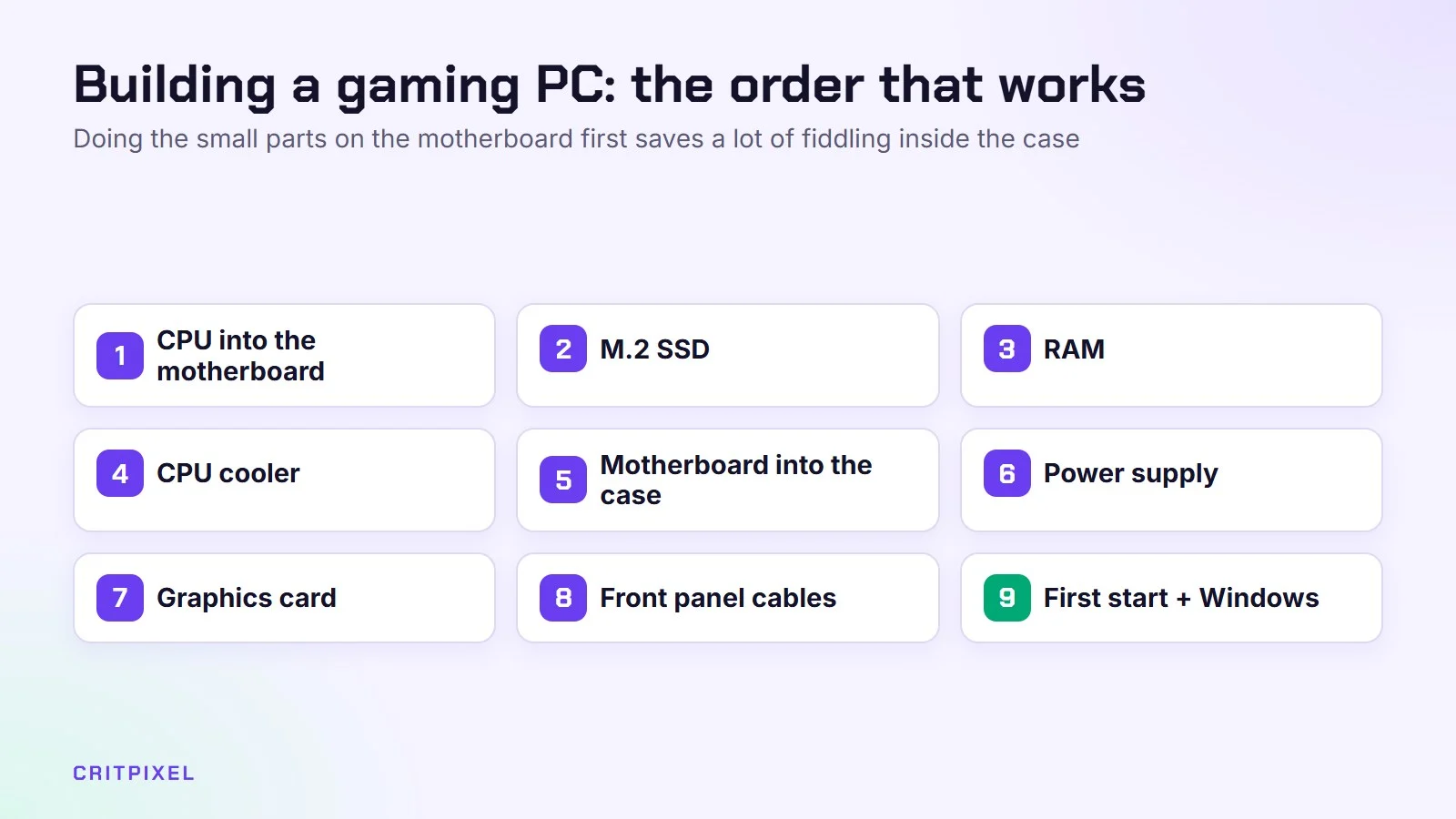
Do steps 1 to 4 with the motherboard lying on its box, outside the case. It’s much easier to reach everything that way.
Step 1: CPU into the motherboard
Lay the motherboard on its box. Lift the CPU socket lever. Line up the small triangle on the CPU with the triangle on the socket, and gently place the CPU in. Never force it. Then lower the lever.
The CPU only fits one way. If it doesn’t sit flat, lift it out and check the triangle again.
Step 2: Install the M.2 SSD
Find the M.2 slot, which is often under a small metal cover. Slide the SSD in at an angle, push it down and secure it with the screw or clip.
Step 3: Install the RAM
Check the manual to see which slots to use (usually slots 2 and 4 for two sticks). Open the clips, line up the notch, and press firmly until the clips click.
RAM needs more force than most people expect, so check that both clips have closed.
Step 4: Mount the CPU cooler
Follow the cooler’s instructions. Many come with thermal paste already applied. If not, a pea-sized dot in the middle of the CPU is enough.
Tighten the cooler’s screws a few turns at a time in a cross pattern, so the pressure stays even. Plug the cooler’s fan into the header marked CPU_FAN on the motherboard.
Step 5: Put the motherboard in the case
Install the small rear I/O shield first if your board has a separate one. Then screw the motherboard onto the standoffs in the case.
Check that the standoffs line up with the holes in your board. A standoff in the wrong place can touch the back of the board and cause a short circuit.
Step 6: Install the power supply
Mount the PSU in its place (usually at the bottom), with the fan facing an air vent. Connect the big 24-pin cable and the CPU power cable to the motherboard.
Step 7: Install the graphics card
Remove the metal slot covers on the back of the case. Push the GPU firmly into the top long PCIe slot until it clicks. Then screw it in and connect its power cables.
Many recent high-end NVIDIA cards use one 16-pin power plug, called 12V-2×6 (or 12VHPWR on older cables). Push it in until it clicks and check there is no gap. Avoid a sharp bend in the cable right next to the plug. A loose connector can overheat.
Step 8: Front panel cables
The tiny power-button and LED cables are the fiddliest part. Use the motherboard manual’s diagram. Everyone finds this annoying, so you’re not doing anything wrong.
Step 9: First start and Windows
Connect the monitor to the graphics card, not the motherboard. Turn on the PC and enter the BIOS (usually with the Delete key). Check that all parts show up, and turn on the XMP/EXPO memory profile so your RAM runs at full speed. Then install Windows from the USB stick. You’ll need a Windows licence.
Be patient on the very first start. Systems with DDR5 memory first test and “train” the RAM, so the screen can stay black for several minutes. Don’t switch the PC off during this time.
Once Windows is running, install the latest graphics driver from NVIDIA, AMD or Intel, and the chipset driver from your motherboard maker’s support page. Then set your monitor’s full refresh rate in Settings → System → Display → Advanced display, and use our guide on how to check your PC specs to confirm everything shows up correctly.
Tip: Do the first start with the side panel still off. If something is wrong, you can reach every cable easily, and you can see whether all the fans spin.
If the PC won’t start
Almost every first-build problem is a loose or forgotten cable. Switch off at the PSU, then check these in order:
| What happens | Check first |
|---|---|
| Nothing at all, no lights or fans | PSU switch on the back; 24-pin cable; power-button cable on the right front panel pins |
| Fans spin, but no picture | Monitor cable in the graphics card; RAM fully clicked in; CPU power cable; wait for memory training |
| PC restarts again and again | Load the BIOS default settings; test with XMP/EXPO switched off |
| CPU gets very hot quickly | Plastic film still on the cooler; cooler not tight; fan not in CPU_FAN |
| Games crash, desktop is fine | GPU power cables fully in; latest graphics driver installed |
Many motherboards have small status lights near the RAM slots, often labelled CPU, DRAM, VGA and BOOT. If one stays lit, it shows which part to check. The manual explains what each light means for your board.
The most common beginner mistakes
- Plugging the monitor into the motherboard instead of the graphics card
- Forgetting the CPU power cable at the top of the motherboard
- RAM not pushed in all the way
- Forgetting to turn on XMP/EXPO
- Leaving the plastic film on the cooler
- Putting the graphics card in a lower slot instead of the top long slot
Building your first PC is a great feeling. Take your time, and enjoy the first boot.
Read next: How to choose a graphics card · How to choose a CPU · How much RAM you need · Do you need a UPS for your gaming PC? · How to choose a PC case · How to enable XMP or EXPO for faster RAM
Quick answers
Is it cheaper to build a PC than to buy a pre-built one? Often, yes. You also choose every part yourself. A pre-built PC is simpler, includes Windows, and gives you one warranty for the whole system.
Do I need an anti-static wrist strap? It’s not essential. Working away from carpet and touching the metal case now and then is enough for most people.
Why is my screen black after building? Check that the monitor is in the graphics card, then wait a few minutes for memory training. If it still shows nothing, work through the table above.
Should I build a PC or buy a gaming laptop? A desktop gives more speed for the money and is easy to upgrade. If you need to carry it, read our gaming laptop buying guide instead.


Leave a Reply