To lower your ping and fix lag, use a wired connection, stop other downloads, pick the nearest game server and restart your router. If your ping is fine but the game still stutters, the problem is your PC, not your connection.
Nothing is worse than losing a fight because the game froze for half a second. First, it helps to know what kind of “lag” you have, because the fixes are different.
This guide starts with a quick diagnosis. Then it works through the fixes, from most to least effective. Near the end, you’ll learn how to test your connection on PC, PS5 and Xbox, and a troubleshooting table.
Ping, packet loss or low FPS?
| Problem | What it looks like | Cause |
|---|---|---|
| High ping | Your actions happen late; enemies shoot you “behind walls” | Slow connection to the game server |
| Packet loss | Rubber-banding, teleporting players, actions not registering | Data lost between you and the server |
| Low FPS | The whole picture stutters, even offline | Your PC or console is too slow (not your internet) |
If the game also stutters offline, it’s an FPS problem. Read our guide to making games run faster instead.
What is a good ping?
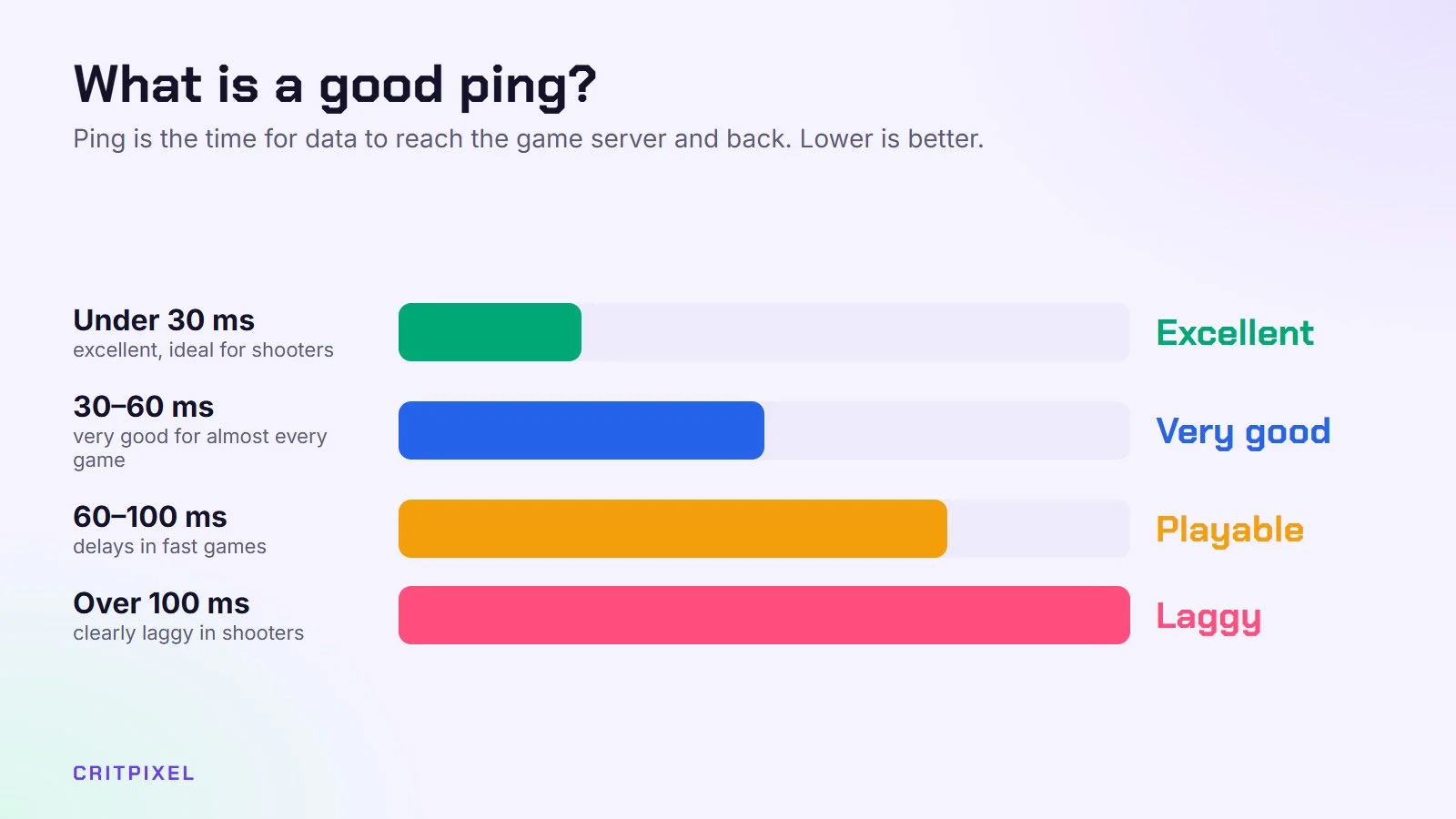
Ping is measured in milliseconds (ms). Lower is better. As a rough guide:
| Ping | How it feels |
|---|---|
| Under 30 ms | Excellent, ideal for competitive shooters |
| 30–60 ms | Very good for almost every game |
| 60–100 ms | Playable, but you may notice delays in fast games |
| Over 100 ms | Clearly laggy in shooters and fighting games |
Jitter is how much your ping jumps up and down. A steady 50 ms often feels better than a ping that swings between 20 and 90 ms.
1. Use a cable instead of Wi-Fi
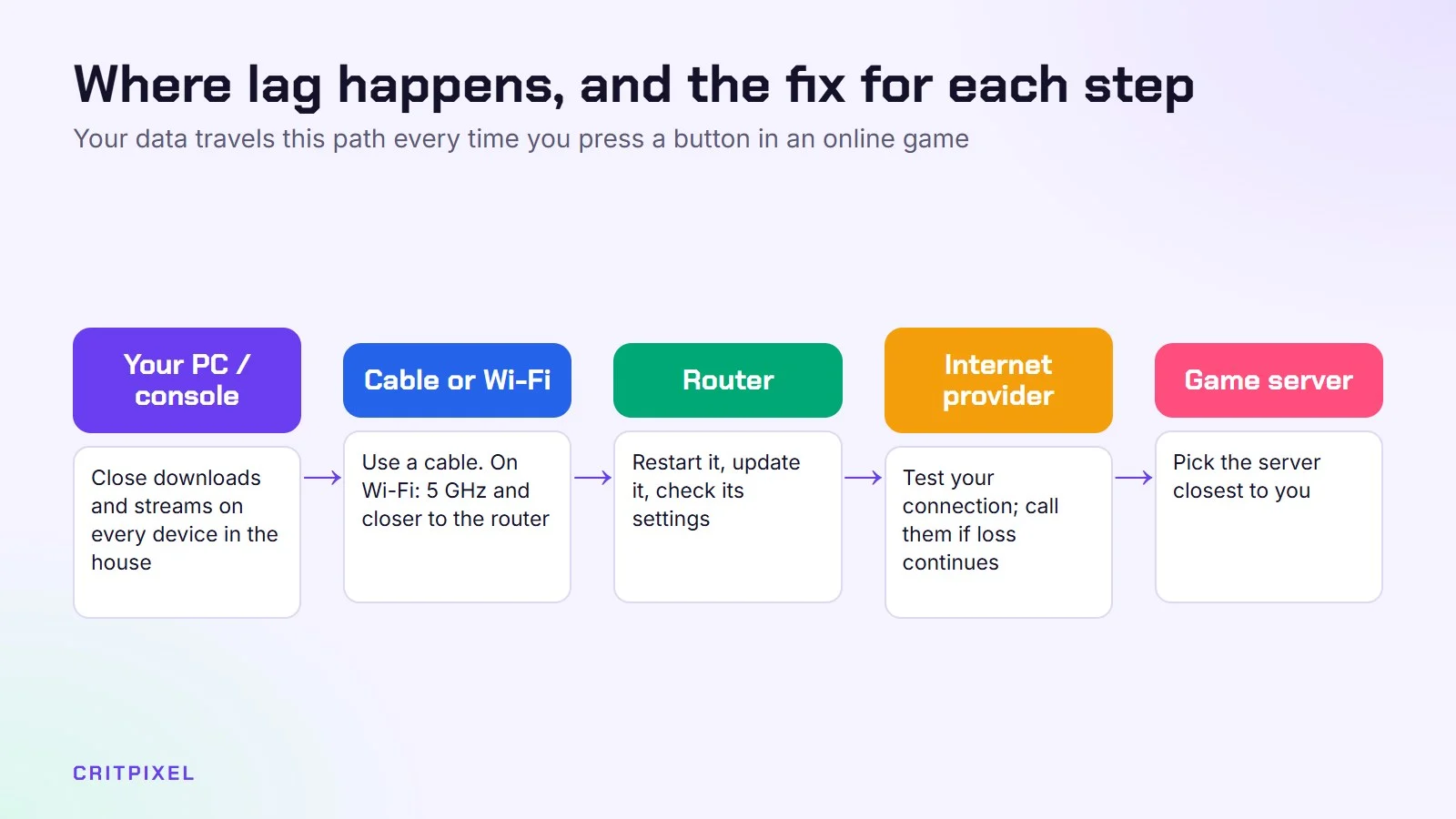
This is the biggest fix. An Ethernet cable from your router to your PC or console gives you lower and much more stable ping than Wi-Fi. If a long cable isn’t possible, powerline adapters (network over your power sockets) are often better than weak Wi-Fi.
Flat Ethernet cables can run under carpets or along skirting boards, so a long cable is often easier to hide than people think.
2. If you must use Wi-Fi, improve it
- Use the 5 GHz network instead of 2.4 GHz when you’re close to the router
- Move the router up high and out of cupboards
- Remove obstacles: thick walls and metal furniture block the signal
- A mesh Wi-Fi system can help in bigger homes
Also check that your PC or console isn’t connected to a range extender at the far end of the house. Each extra wireless hop can add delay.
3. Stop other things using your connection
Downloads, game updates, cloud backups and 4K streaming on other devices all compete with your game. Pause big downloads while you play, especially on consoles that update in the background.
On PC, check for apps that download updates in the background. Game launchers, cloud storage apps and Windows Update are common causes.
4. Pick the closest server
Many games let you choose a region. Always pick the one nearest to you. Playing on a server on another continent will always mean high ping, no matter how fast your internet is.
If you play with friends abroad, the game may pick a server between you. In that case, higher ping is normal for at least one of you.
5. Restart your router
Old advice, but it works more often than you’d think. Turn it off for 30 seconds and back on.
6. Check your router settings
- Some routers have QoS (Quality of Service) or a “gaming” mode that gives game traffic priority. It’s worth turning on.
- Update the router’s firmware through its settings page or app.
If your game reports a strict or moderate NAT type, you may have trouble joining friends or voice chat. The router’s settings or your provider’s support pages usually explain how to fix this.
7. Test your connection properly
Use a speed test website and look at ping and jitter, not just download speed. A 50 Mbit connection with low, stable ping is better for gaming than a 1,000 Mbit one with unstable ping.
Many games also have a network overlay or stats option that shows ping and packet loss while you play.
Your PC and console also have built-in tests:
- PS5: Settings → Network → Connection Status → Test Internet Connection
- Xbox: Settings → General → Network settings → Test network speed & statistics. This test also shows packet loss.
- Windows PC: open Command Prompt and type ping -t followed by an address, for example a game server’s IP. It keeps testing until you press Ctrl + C, then shows how many packets were lost.
To see where the problem starts, type tracert followed by the same address. It lists each step between you and the server. If delays start at the first step, the issue is in your home. If they start later, it’s usually your provider or the route beyond it.
Run each test twice: once on Wi-Fi and once on cable. The difference tells you a lot.
8. Be careful with “lag fixer” tools
Paid tools and some VPNs promise lower ping. A VPN usually adds distance and ping. It only helps in rare cases where your internet provider routes traffic badly. Never download “ping boosters” from unknown websites. They’re a common source of malware.
9. Talk to your internet provider
If you have constant packet loss even on a cable, the problem may be outside your home. Contact your provider with your test results. They can check the line.
Screenshots of your console’s network test, or the results from ping and tracert, make the conversation much faster.
Quick check: Before you call your provider, run the same test at a quiet time (for example in the morning) and at a busy time (in the evening). If ping and packet loss only get worse in the evening, the cause is probably network congestion, not your own equipment.
Troubleshooting by symptom
| Symptom | Most likely cause | First thing to try |
|---|---|---|
| Lag only in the evening | Busy home network or busy provider | Pause other devices; test at different times |
| Lag only in one game | Server location or game servers | Change region; check the game’s server status |
| Lag spikes every few minutes | Background downloads or weak Wi-Fi | Close launchers; try a cable |
| Constant packet loss on cable | Router or provider line | Restart router; contact provider with test results |
| Can’t join friends | Strict NAT type | Check router settings for NAT or UPnP |
Quick summary
- Cable beats Wi-Fi
- Pause other downloads
- Choose the nearest server
- Restart and update your router
- Avoid shady “ping booster” software
From PixelAlex: If you can, test your ping on Wi-Fi and with a cable in the same game. For many players, a wired connection is the single biggest improvement.
Keep reading: how to improve Wi-Fi for gaming, when a VPN helps gaming and how to fix input lag.
Read next: Battlefield 6 beginner tips · How to choose a router for gaming
Quick answers
What is a good ping for gaming? Under 60 ms feels good in almost every game. For competitive shooters, under 30 ms is ideal.
Does faster internet lower ping? Not really. Download speed and ping are different things. Distance to the server and a cable connection matter much more.
Can a VPN lower my ping? Usually not. It adds an extra stop on the way to the server. It only helps in rare cases of bad routing by your provider.
Why is my ping fine but the game still lags? Check for packet loss and jitter, then check your FPS. If the game stutters offline too, your PC or console is the bottleneck.
Is Wi-Fi good enough for online games? Strong, modern Wi-Fi close to the router can work well. For the most stable ping, a cable is still better.
What is packet loss? Data that never reaches the server or never comes back. Even a small amount causes rubber-banding and missed shots.
Leave a Reply