Not everyone has a brand-new gaming PC. The good news is that most laptops can run games much better with a few free changes. Work through these fixes in order, because the first ones make the biggest difference.
Before you start, take a quick measurement. That way, you can see which fixes actually help on your laptop instead of guessing.
Before you start: measure your FPS
FPS (frames per second) tells you how smoothly a game runs. Higher is smoother. You don’t need extra software to see it:
- Xbox Game Bar: press Windows key + G in a game and open the Performance widget. It shows FPS along with CPU, graphics and memory use. The first time, Windows may ask for permission and a restart.
- Steam: open Steam → Settings → In Game and switch on the in-game FPS counter. It works in every game you launch through Steam.
- The game itself: many games have an FPS counter or benchmark in their graphics menu.
Pick one game and one place in it, such as a busy street or the start of a level. Note your FPS there before and after each change.
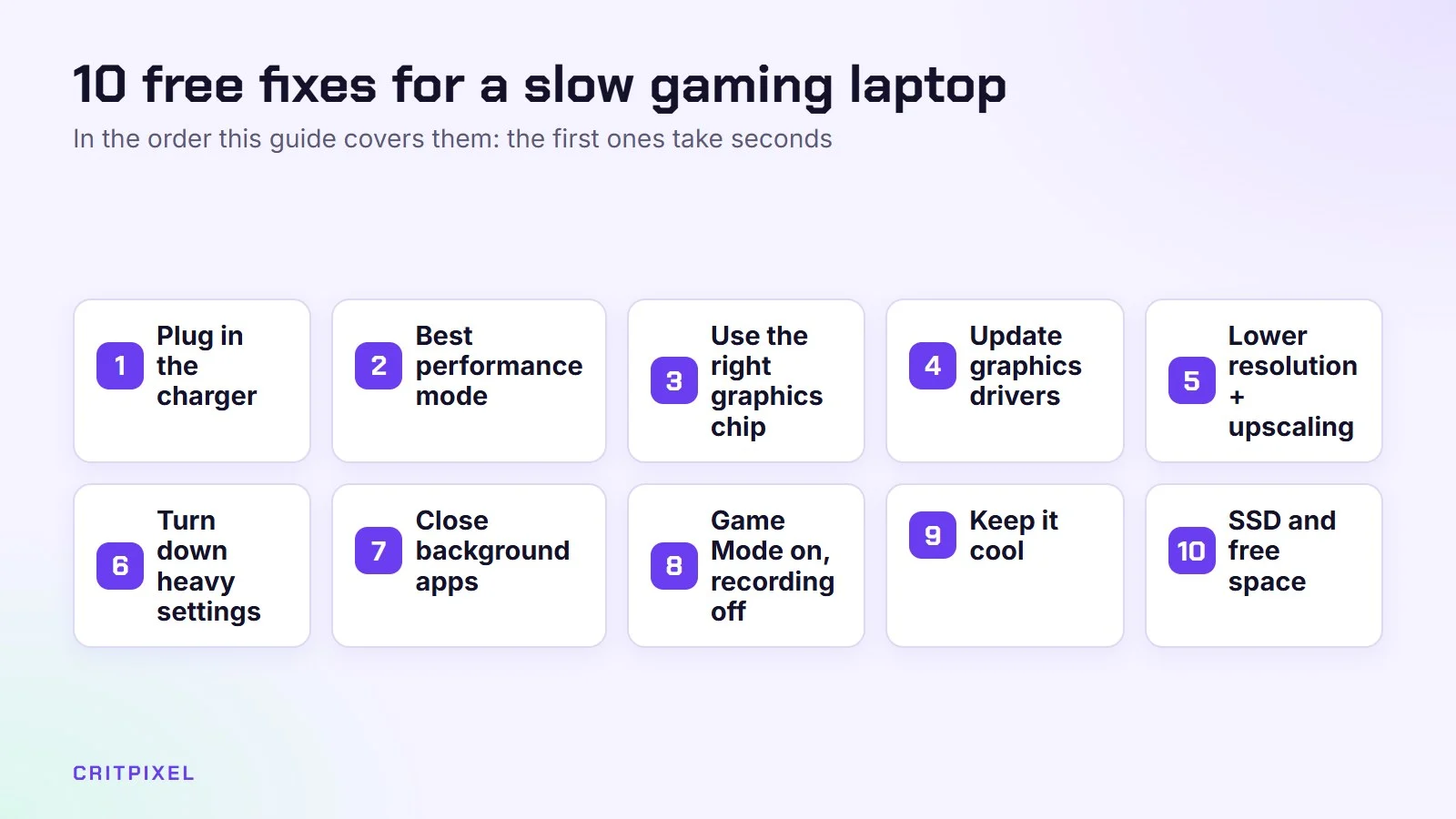
1. Plug in the charger
On battery, most laptops slow down to save power. Always plug in when you play. On some laptops, this alone can greatly improve performance.
Use the charger that came with the laptop. A weaker phone or universal charger may not deliver enough power, even if the battery icon says it is charging.
2. Set Windows to best performance
On Windows 11, go to Settings → System → Power & battery → Power mode and choose Best performance. Some laptops also have an app from the laptop maker with a “Performance” or “Turbo” mode. Turn it on.
These modes make the fans louder. That is normal. It is the price of more speed.
3. Make sure the game uses the right graphics chip
Many laptops have two graphics chips: a weak one for saving power and a stronger one for games. Sometimes games use the weak one by mistake.
- Open Settings → System → Display → Graphics.
- Find your game in the list (or add it with Browse).
- Set it to High performance.
On the same Graphics page, you will also find Optimizations for windowed games. Microsoft designed this option for games that run in windowed or borderless mode, and it can make them feel more responsive. Turn it on and see whether your game feels better.
4. Update your graphics drivers
New drivers often improve performance in recent games. Get them from the official NVIDIA, AMD or Intel websites, or from your laptop maker’s support page.
If a new driver makes things worse, you can go back. Open Device Manager, find your graphics chip under Display adapters, and use Roll Back Driver in its properties if the option is available.
5. Lower the resolution and use upscaling
Resolution is the biggest thing your graphics chip has to handle. Try:
- Playing at 1600×900 or 1280×720 instead of 1920×1080
- Turning on upscaling if the game has it: DLSS (NVIDIA), FSR (works on most cards) or XeSS (Intel and others). Choose the “Quality” or “Balanced” mode.
Both options make the game draw fewer pixels. Upscaling then rebuilds a cleaner image, so it usually looks sharper than simply lowering the resolution. Try it first. Only drop the resolution if upscaling isn’t available or isn’t enough.
6. Turn down the heaviest settings first
You don’t need to put everything on Low. These settings usually cost the most performance:
| Lower these first | Usually OK to keep |
|---|---|
| Shadows | Textures (if you have enough video memory) |
| Volumetric fog / lighting | Anisotropic filtering |
| Reflections / ray tracing | Field of view |
| Ambient occlusion | |
| Crowd and grass density |
Change one setting at a time and check your FPS again. Our guide to PC graphics settings explained describes what each option does and how much it usually costs.
7. Close apps running in the background
Browsers, chat apps and game launchers all use memory and power. Close what you don’t need. Press Ctrl + Shift + Esc to open Task Manager. In the Startup apps tab, turn off programs that don’t need to start with Windows.
A browser with many tabs is a common culprit. If you need a guide or video open while playing, keep it to one tab.
8. Turn on Game Mode and turn off background recording
- Settings → Gaming → Game Mode → On
- If you don’t record clips, turn off background recording in Settings → Gaming → Captures
Overlays from launchers and chat apps can also cost a little performance. If you don’t use them, switch them off in each app’s settings.
9. Keep your laptop cool
When a laptop gets too hot, it slows itself down. That is called thermal throttling.
- Play on a hard, flat surface, not on a bed or sofa
- With the laptop switched off and unplugged, clean dust from the air vents with short bursts of compressed air
- A cheap cooling pad can help some laptops
Here is a tell-tale sign of throttling: the game runs well for the first few minutes, then FPS slowly drops. If that matches what you see, cooling is your priority.
10. Install games on an SSD and keep free space
If your laptop has an SSD, install your games there. Games load faster and stutter less than on an old hard drive. Try to keep at least 15–20% of the drive free.
Not sure what is inside your laptop? Our guide on how to check your PC specs shows you how to find your drive type, graphics chip and memory in a few clicks.
Quick check: Test each fix in the same spot you picked at the start, and note your FPS after every change. If a fix makes no difference, undo it and move on to the next one.
Bonus: cap your frame rate
A steady 30 or 40 FPS feels smoother than a frame rate that jumps between 30 and 60. Use the game’s frame-rate limit, or your graphics driver’s limiter, to keep it steady.
A cap also helps with heat. When the chip doesn’t have to push out every possible frame, the laptop stays cooler and quieter, which reduces throttling.
Troubleshooting: match the symptom to the fix
| What you notice | Likely cause | Try this |
|---|---|---|
| Low FPS from the very start | Settings too high or wrong graphics chip | Fixes 3, 5 and 6 |
| Good at first, then slower after a few minutes | Overheating | Fix 9 and a frame-rate cap |
| Short freezes when entering new areas | Slow drive or too little free space | Fix 10 |
| Much slower on battery than plugged in | Power saving | Fixes 1 and 2 |
| Stutter while a download or update runs | Background apps | Fix 7 |
| Online games lag but FPS is fine | Network, not graphics | See our ping guide below |
That last row matters. If your FPS counter shows high numbers but characters jump around, the problem is your connection. Our guide on how to lower ping and fix lag covers that.
Still too slow?
If you have tried everything, check the game’s minimum requirements. If your laptop is below them, a cloud gaming service or a cheaper console like the Xbox Series S can be better value than a new laptop.
You can also choose games that are kind to modest hardware. Our list of the best games for low-end PCs is a good place to look. If you decide it is time to upgrade, our gaming laptop buying guide explains what to look for. On a desktop PC, our guide to speeding up your gaming PC covers Windows upkeep in more depth.
From PixelAlex: My advice: try the fixes one by one and check your FPS after each change. That way you know exactly which tweak helped your laptop the most.
Read next: How to show an FPS counter in any game · Frame time explained: why FPS is not everything · How to stop a gaming laptop overheating
Quick answers
Why do games run worse on battery? Laptops reduce power on battery to make the battery last longer. Plug in and choose Best performance for full speed.
Does more RAM increase FPS? Only if you don’t have enough. If Task Manager shows memory almost full while gaming, more RAM can help. Otherwise, the graphics chip is usually the limit.
Is a cooling pad worth it? It can help some laptops by a few degrees, especially those with vents underneath. Cleaning the vents usually helps more.
Which setting gives the most FPS? Resolution, or upscaling such as DLSS, FSR or XeSS. After that, shadows and volumetric effects.
How can I see my FPS in a game? Press Windows key + G and open the Performance widget, or switch on the FPS counter in Steam’s In Game settings.

Leave a Reply