Before you buy a new game, it’s worth checking whether your PC can run it. You don’t need any extra software. Windows already tells you everything.
From PixelAlex: I check my own PC against a game’s requirements before buying anything. It only takes a few minutes and can save you from buying a game your system can’t run well.
This guide shows four built-in ways to find your specs, explains how to read a game’s requirements, and walks through a simple example comparison.
What you need to know
For games, five parts matter most:
| Part | Why it matters for games | Where to find it quickly |
|---|---|---|
| Graphics card (GPU) | Decides most of your FPS and settings | Task Manager → Performance → GPU |
| Video memory (VRAM) | Limits texture quality | Task Manager → Performance → GPU, “Dedicated GPU memory” |
| Processor (CPU) | Matters for big open worlds and strategy games | Task Manager → Performance → CPU |
| RAM | Too little causes stutter | Task Manager → Performance → Memory |
| Storage | Space and speed for installing games | File Explorer → This PC |
The fastest way: Task Manager
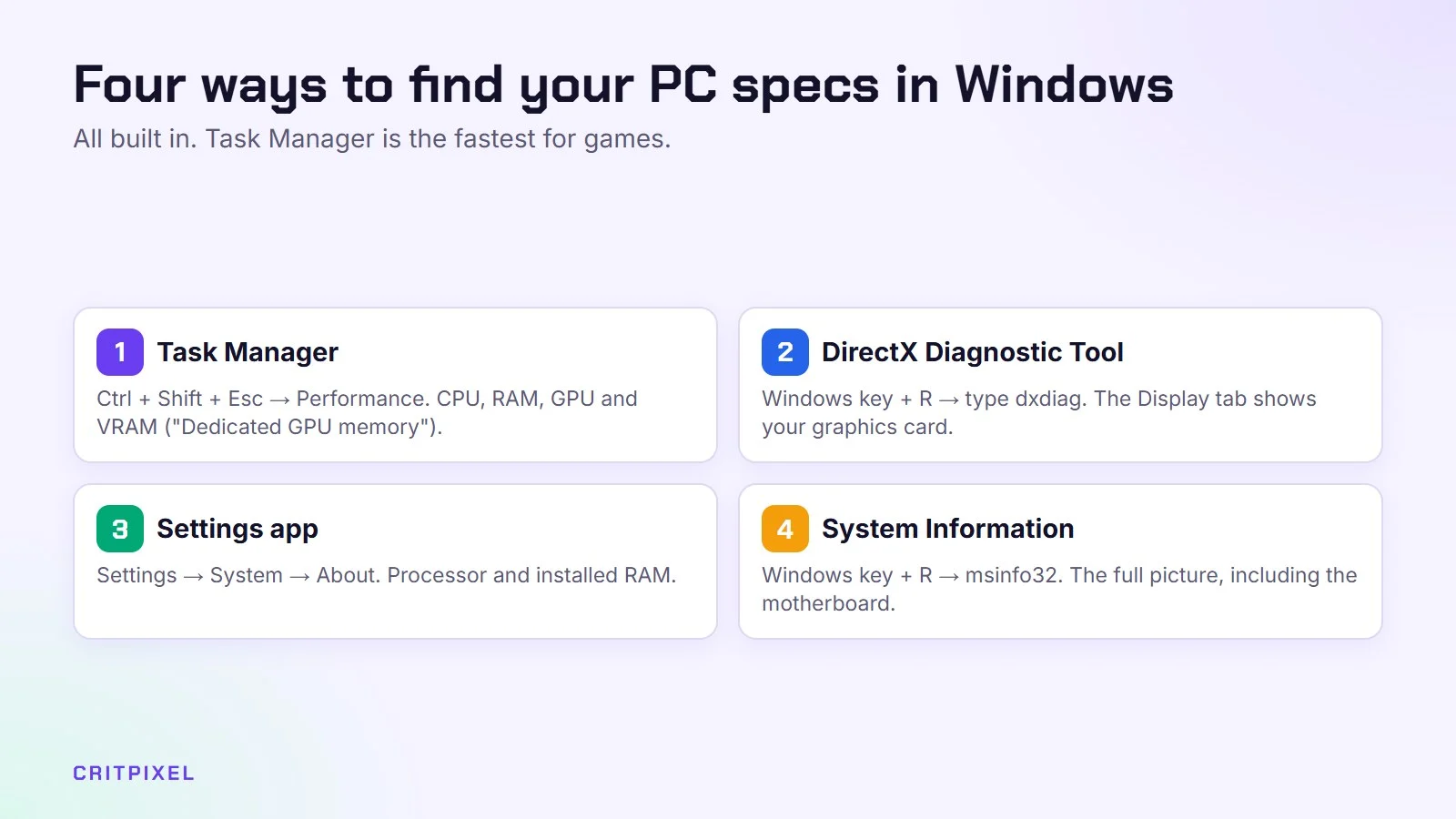
- Press Ctrl + Shift + Esc to open Task Manager.
- Click the Performance tab.
- Click CPU to see your processor, Memory to see your RAM, and GPU to see your graphics card.
This works on Windows 10 and Windows 11.
On the GPU page, look for Dedicated GPU memory. That number is your VRAM, and many games list it in their requirements.
On many laptops, Task Manager shows two graphics entries, GPU 0 and GPU 1. One is the weaker graphics chip built into the processor. The other is the separate gaming GPU. Use the separate one when you compare with game requirements.
Another way: DirectX Diagnostic Tool
- Press Windows key + R.
- Type dxdiag and press Enter.
- The System tab shows your processor and memory. The Display tab shows your graphics card and its memory.
The System tab also shows your DirectX version, which some older requirement lists still mention.
The Settings app
Open Settings → System → About. Under Device specifications, you’ll see your processor, installed RAM and whether Windows is 32-bit or 64-bit.
Almost every modern game needs a 64-bit system. There is also a Copy button, which is handy if you want to paste your specs into a forum post or a support request.
For the full picture: System Information
Press Windows key + R, type msinfo32 and press Enter. The System Summary page lists your processor, installed memory, Windows version and much more.
It’s more detail than most people need, but useful when a game’s support team asks for exact information.
Check your free storage
Open File Explorer → This PC. You’ll see how much space is left on each drive. More and more games require an SSD. To check which type of drive you have, open Task Manager and go to Performance → Disk.
Leave some free space after installing. Games download large updates, and a nearly full drive makes them harder to install.
Check your monitor’s refresh rate
While you’re checking specs, open Settings → System → Display → Advanced display. Here you can see and change the refresh rate. A 144 Hz monitor that is still set to 60 Hz wastes much of what it can do.
Understanding game requirements
Most store pages (Steam, Epic, GOG) list two levels:
- Minimum: the game will start and be playable at low settings, often around 30 FPS at 1080p.
- Recommended: a smooth experience at medium to high settings.
Some publishers add extra levels for 1440p, 4K or ray tracing. Always check which resolution and frame rate each level aims for. “Recommended” for 30 FPS is very different from “recommended” for 60 FPS.
How to compare graphics cards
This is where most people get confused, because the names are complicated. These tips help:
- In NVIDIA names like RTX 4060, the first digits are the generation (40) and the last digits are the tier (60). A higher tier within the same generation is faster. The same logic applies to the newer RTX 50 series.
- AMD Radeon works similarly: RX 7800 XT is a higher tier than an RX 7600.
- A newer generation is not always faster. A higher-tier older card can beat a low-tier new one.
If you’re unsure, search “[your card] vs [required card]” and look at benchmark results from well-known tech websites.
Requirement lists often name one NVIDIA card and one AMD card. You only need to match one of them.
A worked example
Here is how a comparison might look for an imaginary game. Each part is checked against the recommended level:
| Part | Game recommends | Your PC | Result |
|---|---|---|---|
| GPU | Mid-tier card, 8 GB VRAM | Card from the same tier, one generation newer, 8 GB | Fine |
| CPU | Six-core processor | Six-core processor, same age | Fine |
| RAM | 16 GB | 8 GB | Weak point: expect stutter |
| Storage | SSD, 100 GB free | SSD, 60 GB free | Free up space first |
In this example, the graphics card and processor are fine. More RAM and more free space would make the biggest difference.
Other things to check
- If a game says 16 GB RAM and you have 8 GB, it may run, but expect stutter.
- Laptop graphics chips are usually slower than desktop cards with the same name.
- Update your graphics driver before playing a new release. New drivers often include fixes for recent games.
Tip: Keep a short note of your specs: graphics card, VRAM, processor and RAM. With that note at hand, you can compare your PC with any game’s requirements in seconds.
Still not sure?
Many stores let you refund a game if you have only played it for a short time. Steam, for example, usually allows refunds within 14 days of purchase if you’ve played less than two hours. Check the store’s current refund policy before you rely on it.
If your PC falls short, our guides on graphics settings and making games run faster on a weak laptop can help you squeeze out more performance. Or pick from our games that run on low-end PCs.
Read next: How much RAM you need for gaming · How to choose a graphics card
Quick answers
How do I find out which graphics card I have? Press Ctrl + Shift + Esc, open the Performance tab and click GPU. The name appears at the top right.
How do I check how much VRAM I have? On the same GPU page in Task Manager, look for “Dedicated GPU memory”. The Display tab in dxdiag shows it too.
Can I play a game if I only meet the minimum requirements? Usually yes, but at low settings and a lower frame rate. Expect some stutter in busy scenes.
Do I need to download a program to check my specs? No. Task Manager, dxdiag, the Settings app and System Information are all built into Windows.
Why does Task Manager show two GPUs? Many laptops and some desktops have graphics built into the processor as well as a separate graphics card. The separate card is the one that matters for games.


Leave a Reply