Streaming looks complicated, but you can start with free software and the PC you already have. This guide covers a simple, good-quality setup for your first stream.
You don’t need expensive gear to begin. A stable internet connection and clear audio matter much more than a fancy camera. Once the basics work, you can improve one piece at a time.
What you need
- A Twitch account
- OBS Studio (free, from obsproject.com)
- A microphone (a headset mic is fine to start)
- Optional: a webcam
It also helps to have a wired internet connection. Wi-Fi works, but short drops in signal cause dropped frames on stream. If you play online games too, our guide on how to lower ping and fix lag covers network basics.
Step 1: Secure your Twitch account
Turn on two-factor authentication in your Twitch security settings. Streamers’ accounts are popular targets for hackers.
Use a unique password that you don’t use anywhere else. Our guide on how to protect your gaming accounts explains the most common tricks used against streamers.
Step 2: Install OBS Studio and run the auto-setup
Download OBS only from the official website. When you first open it, the Auto-Configuration Wizard asks what you want to do. Choose Optimize for streaming, select Twitch, and connect your account. OBS tests your PC and internet and picks starting settings.
Connecting your account directly is safer than copying a stream key by hand. It also adds Twitch chat and stream information panels inside OBS.
Step 3: Add your sources
In OBS, a scene is a layout, and sources are the things inside it:
- Click + under Sources → Game Capture → choose your game
- Add Audio Input Capture → choose your microphone
- Optional: add Video Capture Device for your webcam
If Game Capture shows a black screen, try Window Capture or Display Capture instead.
It is worth creating a few scenes before you go live:
- Starting soon: a simple image or text, so viewers know you are about to begin
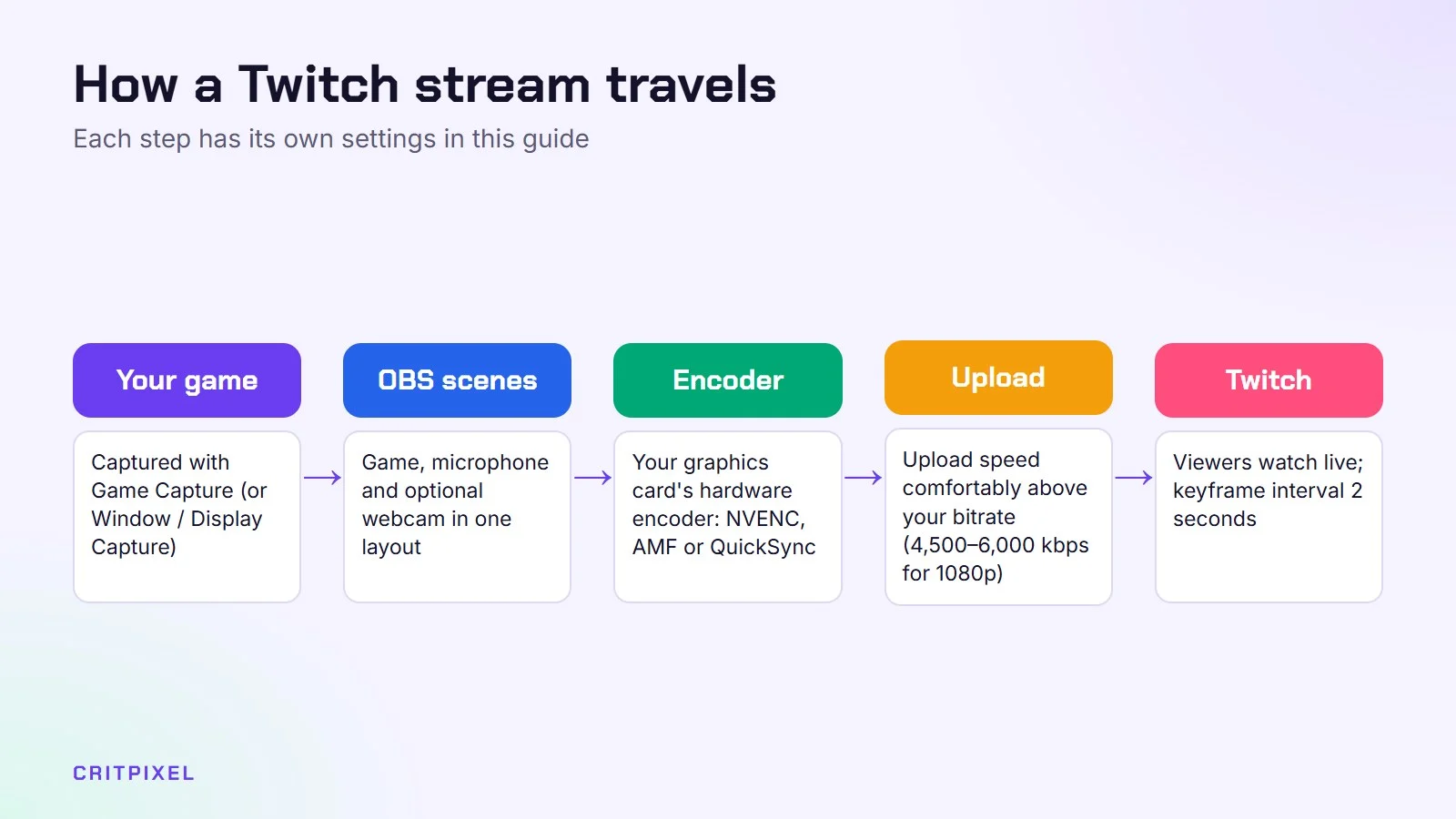
- Gameplay: your game, microphone and optional webcam
- Be right back: for short breaks, with your microphone muted
You can switch between scenes with a click, or set hotkeys in Settings → Hotkeys.
Step 4: Choose good settings
In Settings → Output (encoder and bitrate) and Settings → Video (resolution and frame rate):
| Setting | Good starting point |
|---|---|
| Encoder | Your graphics card’s hardware encoder (NVENC on NVIDIA, AMF on AMD, QuickSync on Intel) |
| Resolution | 1080p if your upload speed is good, 720p if it’s not |
| Frame rate | 60 FPS for fast games, 30 FPS if you have problems |
| Bitrate | Around 4,500–6,000 kbps for 1080p (lower for 720p) |
Run a speed test first. Your upload speed should be comfortably higher than your bitrate. Twitch’s standard maximum is about 6,000 kbps.
Two more settings are worth checking:
- Keyframe interval: set it to 2 seconds in the output settings. This is the value commonly recommended for Twitch.
- Hardware encoder: using the graphics card’s encoder leaves your processor free for the game, which matters on mid-range PCs.
Step 5: Make your audio sound good
Viewers forgive a blurry picture, but not bad audio.
- Right-click your microphone in OBS → Filters → add Noise Suppression
- Keep game audio quieter than your voice
- Do a short test recording and listen back before going live
Watch the audio meters in the OBS mixer. Your voice should mostly sit in the yellow area while you talk normally. If it reaches red, lower the microphone level, because loud peaks sound distorted.
Step 6: Fill in your stream info
In the Twitch Creator Dashboard, set a clear title, the category (the game you’re playing), and tags. “First stream! Learning Elden Ring” works better than “stream”.
Also check that past broadcasts are saved in your channel settings. Recordings of your streams are useful for clips and for checking your own audio afterwards.
Step 7: Go live
Click Start Streaming in OBS. Don’t worry if nobody watches at first. Almost every streamer starts at zero viewers.
Keep your own channel open on a phone, with the sound off, to see what viewers see. A delay of a few seconds is normal.
Streaming from a console
- PS5: press the Create button → Broadcast and link your Twitch account.
- Xbox: check Xbox’s current streaming options or use a capture card with OBS on a PC.
A capture card gives you more control on any console: you can add overlays, scenes and better audio through OBS. For the PS5, our PS5 settings to change first guide covers useful options too.
Troubleshooting common problems
| Problem | Likely cause | Fix |
|---|---|---|
| Black screen in OBS | Game Capture can’t hook the game | Try Window Capture or Display Capture |
| Stream keeps buffering | Bitrate too high for your upload speed | Lower the bitrate or switch to 720p |
| Dropped frames | Unstable connection | Use a cable instead of Wi-Fi |
| Game lags while streaming | PC overloaded | Use the hardware encoder and lower in-game settings |
| Viewers hear an echo | Speakers picked up by the mic | Use headphones |
| Mic too quiet or too loud | Wrong levels | Adjust the mixer and record a test |
To see what is going wrong, open the Stats panel from the Docks menu in OBS. It shows dropped frames and whether the problem comes from your network or your PC.
Avoid these beginner mistakes
- Copyrighted music: don’t play music from Spotify or the radio on stream. It can get your videos muted or your channel penalised.
- Showing private info: check that no emails, messages or your address appear on screen.
- Stream key: never share it or show it on screen. Anyone with it can stream to your channel.
Growing your channel
- Stream on a regular schedule
- Talk constantly, even with zero viewers, because your recordings can become clips later
- Twitch’s Affiliate programme (which lets you earn money) has requirements such as followers, stream time and average viewers. Check Twitch’s current requirements on its help pages.
A few more habits help a new channel:
- Pick less crowded categories. In a huge category, a new stream is easy to miss.
- Greet every chatter by name. Small channels grow through personal connection.
- Keep streams a sensible length. A focused two-hour stream often works better than an unplanned marathon.
- Share clips of funny or impressive moments on other social platforms. Our guide shows how to record and share game clips on PC and console.
Tip: Do a private test before your first public stream. In OBS, click Start Recording, play for about ten minutes, then watch the file back. This lets you check your audio levels, scenes and picture quality without anyone watching.
From PixelAlex: My advice: do a short private test stream before going live. It helps you check your audio, video and settings without any pressure.
Read next: OBS settings for streaming: a simple setup · How to choose a microphone for streaming · How to choose a capture card
Quick answers
Is OBS Studio free?
Yes. OBS Studio is free and open-source software for Windows, macOS and Linux.
What upload speed do I need to stream on Twitch?
It should be comfortably above your bitrate. For 1080p at around 6,000 kbps, aim for clearly more than 6 Mbps of upload speed.
Can I stream on Twitch with a laptop?
Yes, if it can run the game smoothly. Use the hardware encoder and start at 720p. Our gaming laptop buying guide helps if you plan to upgrade.
Do I need a webcam to stream?
No. Many successful streamers never show their face. Good audio is far more important.
Why does my stream look blurry?
Usually the bitrate is too low for the resolution, or the game has lots of fast movement. Try 720p at the same bitrate for a sharper picture.
How do I keep my stream key safe?
Connect your account through OBS instead of pasting the key, never show your settings on stream, and reset the key in your Twitch settings if it may have leaked.
Leave a Reply