To increase FPS in PC games, work from free fixes to paid ones: update your graphics driver, set Windows to performance mode, lower the heaviest settings, turn on upscaling, and only then think about new hardware. Most players gain 20–50% FPS without spending anything.
This guide is the hub for all our performance articles. Each step links to a deeper guide if you want the details.
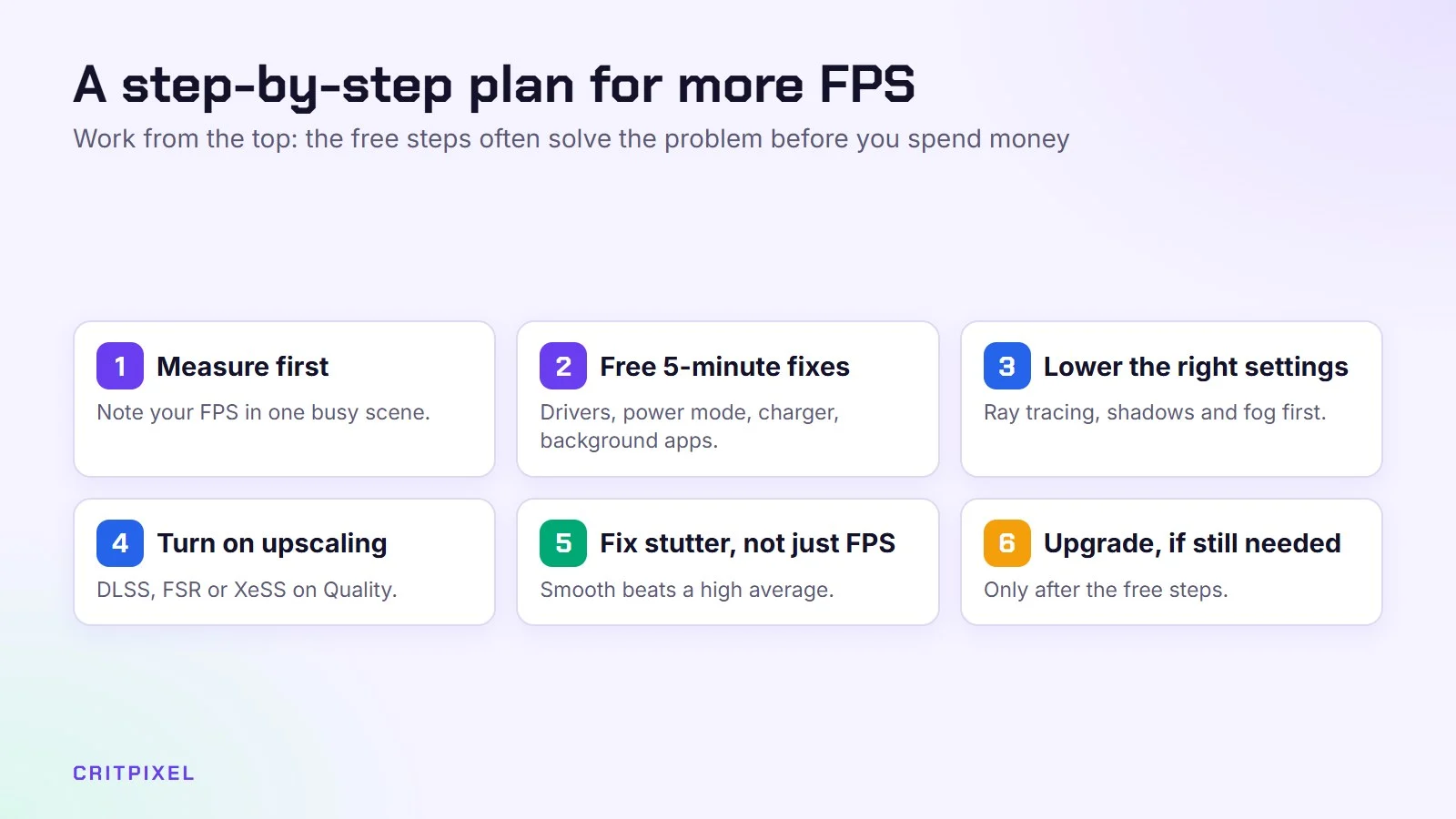
Step 1: Measure before you change anything
You can’t improve what you don’t measure. Turn on an FPS counter and pick one busy scene in a game you play often, such as a city, a big fight or a crowded match.
- Xbox Game Bar: press Windows key + G and open the Performance widget.
- Steam: Settings → In Game → In-game FPS counter.
- NVIDIA or AMD apps: both have a performance overlay.
Write down your average FPS in that scene. After each change, test the same scene again. This stops you from guessing.
From PixelAlex: I play on my own gaming PC as well as a PS5. My advice: measure one busy scene before and after every change, so you always know which tweak really helped.
Step 2: Free fixes that take five minutes
These fixes cost nothing and often give the biggest gains on older or cheaper PCs:
- Update your graphics driver. New drivers often add fixes for recent games. See how to update graphics drivers.
- Use Best performance mode. Settings → System → Power & battery → Power mode → Best performance.
- Plug in your laptop. Most laptops slow down a lot on battery.
- Close background apps. Browsers with many tabs, launchers and chat apps use memory and processor time.
- Check your monitor’s refresh rate. A 144 Hz monitor running at 60 Hz hides your extra frames. See how to set your monitor to 144 Hz.
- Make sure the game uses your graphics card, not the weaker built-in graphics on laptops.
Our guide on how to speed up your gaming PC covers Windows clean-up in more depth, and laptop owners should also read 10 free fixes for a weak laptop.
Step 3: Lower the right settings
Not every setting costs the same. Lowering the expensive ones gives big gains with little visual loss.
| Setting | FPS cost | Visual difference when lowered |
|---|---|---|
| Resolution | Very high | Large (use upscaling instead) |
| Ray tracing | Very high | Medium |
| Shadows | High | Small |
| Volumetric fog and clouds | High | Small |
| Ambient occlusion | Medium | Small |
| Anti-aliasing (heavy types) | Medium | Small with upscaling on |
| Textures | Low, if you have enough VRAM | Large |
| Anisotropic filtering | Very low | Large |
Start with the preset one step below what you use now, then raise textures and filtering back up. Our guide to PC graphics settings explained describes every setting in detail.
Step 4: Turn on upscaling
Upscaling renders the game at a lower resolution and rebuilds a sharp image. In Quality mode it often adds 30–60% FPS and looks close to native resolution.
- DLSS works on NVIDIA RTX cards.
- FSR works on almost any modern card.
- XeSS works on Intel cards and many others.
Read DLSS, FSR and XeSS explained to choose the right one and avoid blurry modes.
Step 5: Fix stutter, not just low FPS
Sometimes your average FPS is fine, but the game still feels jerky. That is stutter, and it has different causes: shader compilation, a full drive, too little VRAM or overheating. Our guide on how to fix stutter in PC games explains each cause.
If your FPS drops after 10–20 minutes of play, heat is the likely reason. See how to fix high CPU and GPU temperatures.
Step 6: Upgrades, if you still need more
Only buy hardware once the free fixes are done. Then upgrade the part that limits you:
| Symptom | Likely bottleneck | Upgrade that helps most |
|---|---|---|
| GPU usage near 100%, CPU lower | Graphics card | New graphics card |
| GPU usage well below 90%, one CPU core maxed | Processor | Faster CPU (check your motherboard first) |
| Memory almost full in Task Manager | RAM | 16 GB → 32 GB |
| Long loads and freezes in new areas | Storage | NVMe SSD (SSD guide) |
Not sure what you have? Our guide on how to check your PC specs shows you in a minute.
Tip: Change one thing at a time and test again. If you change five settings at once, you won’t know which one helped and which one only made the game look worse.
Check the settings outside the game
Some of the biggest FPS losses come from settings that are not in the game menu at all. Check these once on every PC:
| Problem | How to check | Fix |
|---|---|---|
| Monitor cable in the wrong port | Look at the back of the PC: is the cable in the motherboard’s video ports? | Plug it into the graphics card’s ports, lower down on the case |
| RAM below its rated speed | Task Manager → Performance → Memory → Speed | Turn on XMP (Intel) or EXPO (AMD) in the BIOS |
| Laptop game on built-in graphics | Task Manager → Performance shows the weak GPU busy while you play | Settings → System → Display → Graphics, pick the game, choose High performance |
| Background recording always on | Game Bar or your GPU app’s capture settings | Turn it off if you never save clips |
| Too many overlays | Discord, Steam and GPU overlays all on at once | Keep one FPS counter and turn the rest off |
The cable mistake is common on desktops whose processor has built-in graphics. The game may then run on the weak chip, or lose performance while the image is passed through it.
The RAM fix matters more than most people think. Memory sold as a fast kit often runs at a much lower default speed until you turn on its profile in the BIOS. Processor-heavy games gain the most from this.
Common FPS mistakes to avoid
- Chasing Ultra. The difference between High and Ultra is often hard to see in motion, but it can cost a noticeable chunk of FPS.
- Lowering textures first. Textures barely affect FPS when you have enough VRAM, and low textures make a game look much worse. Lower shadows and effects first.
- Testing in menus or empty areas. These give high, misleading numbers. Always test the same busy scene.
- Leaving FPS uncapped in light games. Older or simple games can run at hundreds of FPS, which makes your graphics card hot and loud for no benefit. Our guide on how to cap FPS shows the best way to set a limit.
- Installing “FPS booster” apps. Most only close background programs, which you can do yourself, and some bundle unwanted software.
Read next: How to fix low GPU usage in games · Windows 11 settings for gaming
Quick answers
What gives the biggest FPS boost for free? Usually upscaling in Quality mode, followed by lowering shadows and volumetric effects. On laptops, plugging in the charger often matters even more.
Does more RAM increase FPS? Only if you don’t have enough. Going from 8 GB to 16 GB helps a lot in modern games. Going from 16 GB to 32 GB helps less often.
Does Windows Game Mode increase FPS? It can reduce background interruptions, so leave it on. Don’t expect a large boost from it alone.
Why is my FPS lower than in benchmarks online? Benchmarks use different scenes, settings and hardware. Your processor, RAM speed and background apps also matter. Compare only your own before-and-after numbers.
Is 60 FPS enough? For most single-player games, yes. Fast shooters feel smoother at 120 FPS or more, especially on a high refresh rate monitor.
Why did my FPS drop after a Windows update? Windows Update can sometimes install a different graphics driver. Reinstall the latest driver from NVIDIA, AMD or Intel and test the same scene again.
Leave a Reply