ReShade is a free tool that adds post-processing effects to PC games: a sharper image, better colours, ambient occlusion, depth of field and much more. It adds a few files to the game’s folder, but it doesn’t change the game itself.
This guide shows you how to install it, how to load a preset, and how to remove it again. It also explains which effects are worth trying first, how to keep your frame rate healthy, and what to do when something goes wrong.
Important: only use ReShade in single-player or offline games. Many online games use anti-cheat software that can block third-party tools. Some may even treat ReShade as cheating. If you’re not sure, check the game’s rules first.
What ReShade can and can’t do
Think of ReShade as a filter that sits on top of the finished image. It can change how the picture looks, but it cannot add new detail that the game never drew.
| ReShade can | ReShade can’t |
|---|---|
| Sharpen a soft or blurry image | Add higher-resolution textures |
| Change colours, contrast and brightness | Add new models or objects |
| Add depth of field or extra shading in many games | Fix a game’s bugs or crashes |
| Help you take nicer screenshots | Make a game run faster |
That last point matters. Every effect costs some performance, so ReShade works best on PCs with a bit of headroom. If your system already struggles, see our guide to making games run faster on a weak laptop first.
What you need
- A Windows PC
- The game installed on your PC (Steam, Epic, GOG, etc.)
- About 10 minutes
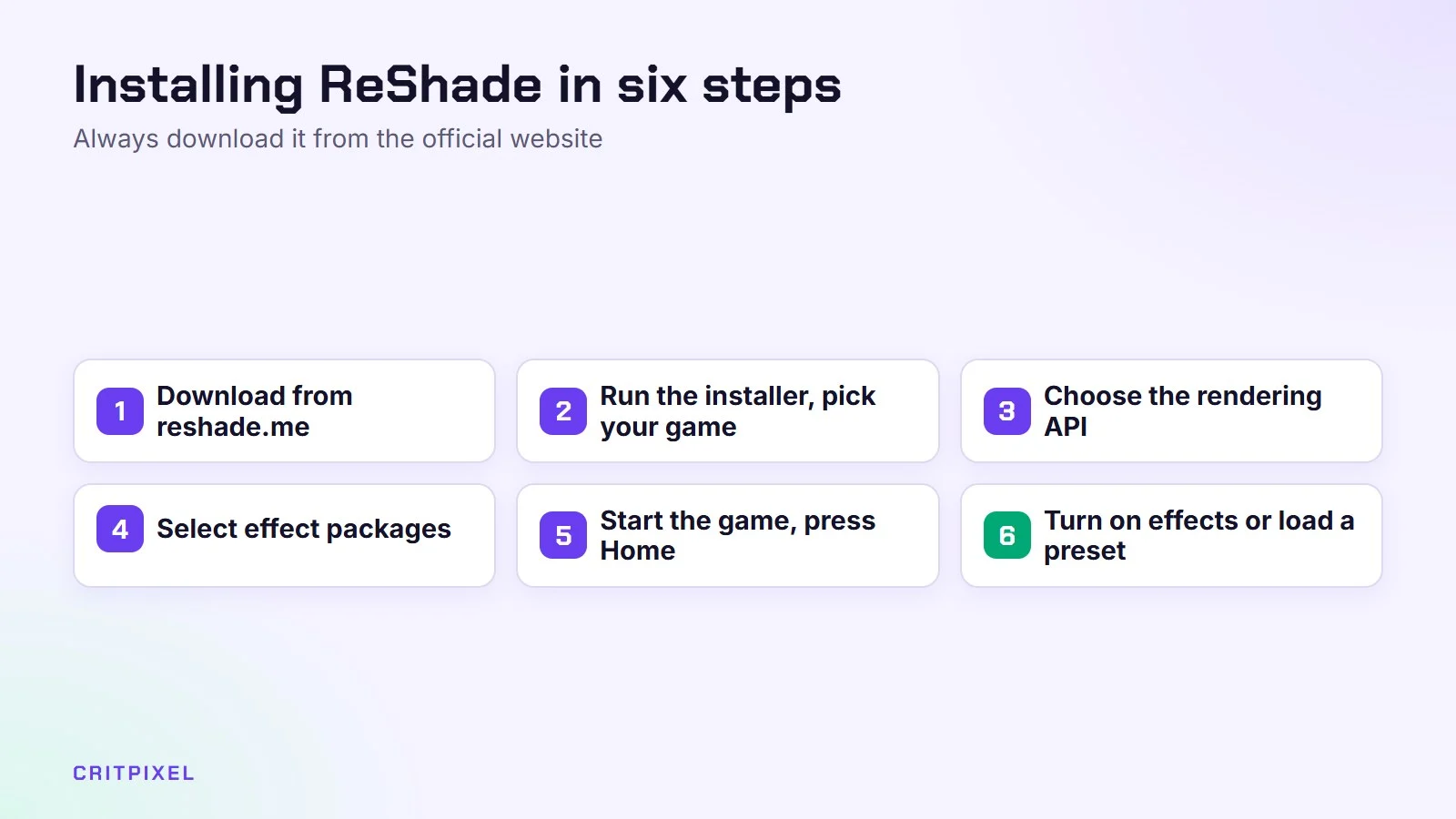
Step 1: Download ReShade from the official website
Go to reshade.me and download the latest version. Only download ReShade from the official site. Copies from other websites can contain malware.
The site offers two versions. The standard version is the right choice for almost everyone. The version with full add-on support is meant for single-player games only. ReShade’s own release notes warn that this version is not whitelisted by anti-cheat providers, so using it in online games can lead to a ban.
Step 2: Run the installer and pick your game
- Open the downloaded file.
- The installer shows a list of games it found. Pick your game, or click Browse and select the game’s .exe file.
- Tip: For Steam games, right-click the game in your library and choose Manage → Browse local files to find the folder with the .exe.
Some games keep the real .exe in a sub-folder, for example a folder called “bin” or “Binaries”. If ReShade later doesn’t appear in the game, check whether you picked a launcher file instead of the game itself.
Step 3: Choose the rendering API
ReShade asks which graphics API the game uses:
- DirectX 9
- DirectX 10/11/12
- OpenGL
- Vulkan
If you are not sure, search for “[game name] rendering API”. Many modern games use DirectX 11 or 12. Picking the wrong one is not dangerous. ReShade just won’t appear in the game, and you can run the installer again.
Some games let you switch between DirectX 11, DirectX 12 or Vulkan in their own graphics menu. In that case, choose the API the game is actually set to use.
Step 4: Select effect packages
Next, you choose which effect packages to download. For beginners, the standard effects package is enough. You can add more later. Installing everything makes the menu crowded and slow to load.
Click Next and let the installer finish.
Step 5: Open the ReShade menu in the game
Start your game. You should see a small ReShade message at the top of the screen. Press the Home key to open the ReShade menu. The first time, a short tutorial walks you through the basics.
Step 6: Turn on effects or load a preset
- To try effects yourself, tick boxes in the list. Good first choices: a sharpening effect and a colour or “vibrance” effect.
- To use someone else’s look, download a preset (a small .ini file), put it in the game folder, and select it from the drop-down at the top of the ReShade menu.
Presets are made for specific games. A preset made for one game can look strange in another.
Where to find good presets
Preset makers usually share their files on popular modding sites and in community forums for each game. Before you download one:
- Check that the preset was made for your game, ideally for a recent version
- Read the description to see which effect packages it needs, and install those first
- Look at the screenshots and comments to see whether people report problems
- Only download .ini preset files, never unknown .exe files claiming to be presets
Which effects should beginners try?
The effect list can look overwhelming. This table sorts the common types by how much they usually cost.
| Effect type | What it does | Performance cost |
|---|---|---|
| Sharpening | Makes a soft image look crisper | Low |
| Vibrance or colour correction | Makes colours richer or more natural | Low |
| Tonemapping or levels | Adjusts brightness and contrast | Low |
| Anti-aliasing (such as SMAA) | Smooths jagged edges | Low to medium |
| Ambient occlusion | Adds soft shadows where objects meet | High |
| Depth of field | Blurs the background like a camera | High |
Start with one low-cost effect, adjust its sliders, then add the next. Stacking several heavy effects at once is the quickest way to lose frame rate.
How to keep ReShade running smoothly
- Untick effects you don’t use. Unticked effects cost no performance. However, a long list of installed effects still makes loading slower.
- Use Performance Mode once you are happy. On the Home tab of the ReShade menu there is a Performance Mode checkbox. It locks your settings and can make loading faster. Untick it again when you want to make changes.
- Watch your frame rate. If it drops below a comfortable level, turn off the heaviest effect first.
Common problems and fixes
| Problem | Fix |
|---|---|
| ReShade doesn’t appear | Run the installer again and choose a different rendering API |
| The game runs much slower | Turn off heavy effects such as ambient occlusion and depth of field |
| The menu won’t open | Check the menu key under Settings, or try Shift + F2 |
| Effects don’t show up | Check that the effect is ticked and the preset is selected |
| The game won’t start | Uninstall ReShade (see below) and check the game still works |
A few more issues come up often:
- Depth of field or ambient occlusion looks wrong or covers the whole screen. These effects need depth information from the game, and not every game shares it. Some games only work with in-game multi-sample anti-aliasing (MSAA) turned off.
- The game updated and ReShade stopped working. Run the installer again on the same game.
How to uninstall ReShade
Run the ReShade installer again, select the same game, and choose Uninstall. ReShade removes its files and your game is back to normal.
If the installer is no longer available, download it again from reshade.me. For Steam games, you can also use Verify integrity of game files in the game’s properties afterwards to make sure everything is back to the original state.
Tip: Before you uninstall, copy your preset .ini file to a safe folder. If you install ReShade again later, you can put the file back and restore your look in seconds.
Our tips
- Change one thing at a time. That makes it easier to see what each effect does.
- Use the effect toggle key to compare on vs off. Sometimes less is more.
- Make a preset for screenshots (pretty but slow) and one for playing (light and fast).
- Check your monitor settings too. Our guide on how to choose a gaming monitor explains how panel type and brightness affect colours.
From PixelAlex: Start with a light preset and change one effect at a time. It’s the easiest way to see what each effect does and keep your frame rate stable.
Keep reading: PC graphics settings explained, how to increase FPS in PC games and best games with mod support.
Quick answers
Is ReShade safe? Yes, when you download it from the official reshade.me website. Copies from other sites can contain malware.
Can ReShade get me banned? In single-player games, no. In online games with anti-cheat, it can be blocked, and the version with full add-on support should never be used online.
Does ReShade lower FPS? Yes, a little or a lot, depending on the effects. Sharpening and colour effects are light, while ambient occlusion and depth of field are heavy.
How do I open ReShade? Press the Home key in the game. You can change this key in the ReShade settings.
Does ReShade work on consoles? No. ReShade is a PC tool. It does not work on PlayStation, Xbox or Nintendo consoles.
Leave a Reply